Admin Guide: Managing AMODX
Everything you need to know about administering your AMODX stack. Either from the Admin Panel or directly through Claude Desktop.
AMODX gives you two ways to manage your infrastructure: the visual Admin Panel (web interface) or direct commands through Claude Desktop via the MCP server. Both access the same underlying system. Use whichever fits your workflow.
Quick Start: First Login
After deploying AMODX, you'll receive an admin URL. Navigate to it and log in with your AWS Cognito credentials (created during setup). You'll land in the Content dashboard.
The Admin Panel: Overview
The Admin Panel is your command center. Left sidebar contains navigation. Main area shows content/settings. Everything is organized into clear sections.
Content Management
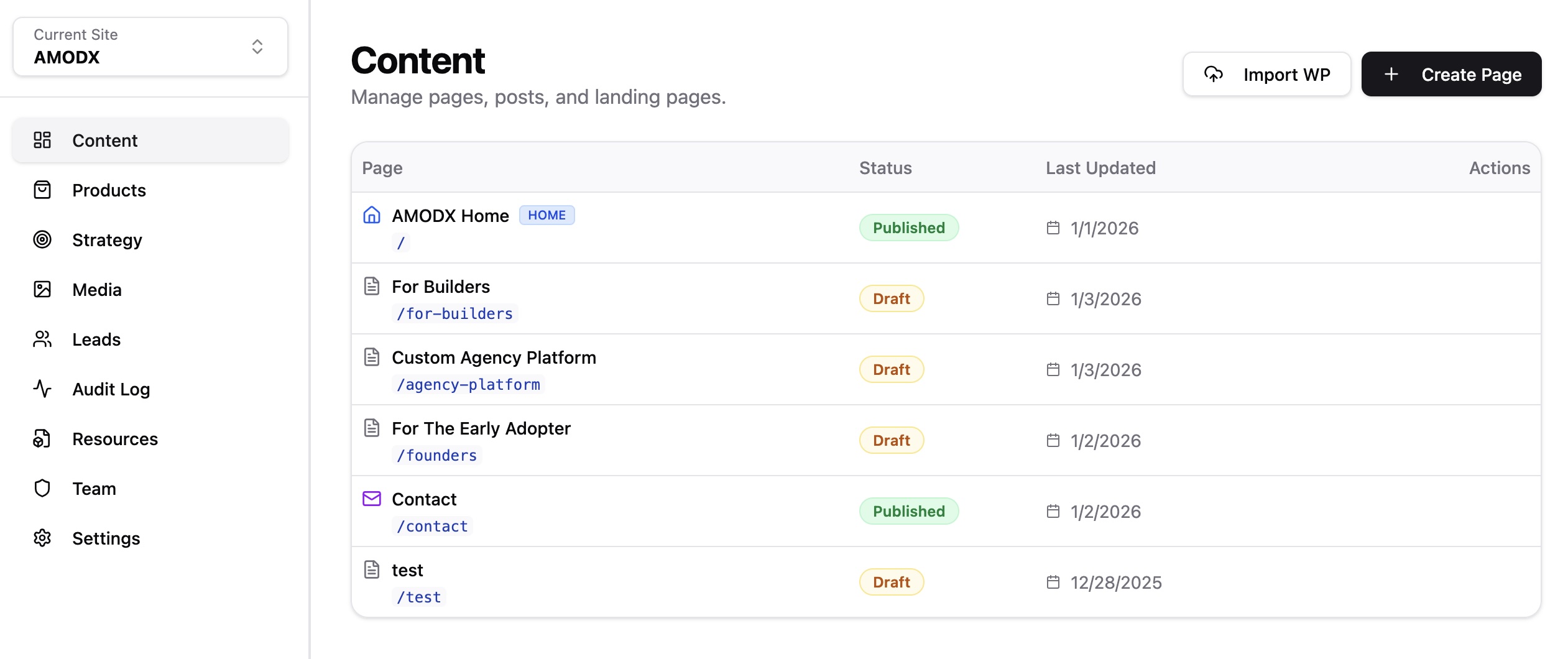
The Content section is where you create and manage pages. Every page has a slug (URL), title, and status (Draft/Published/Archived). You can import from WordPress using the Import WP button.
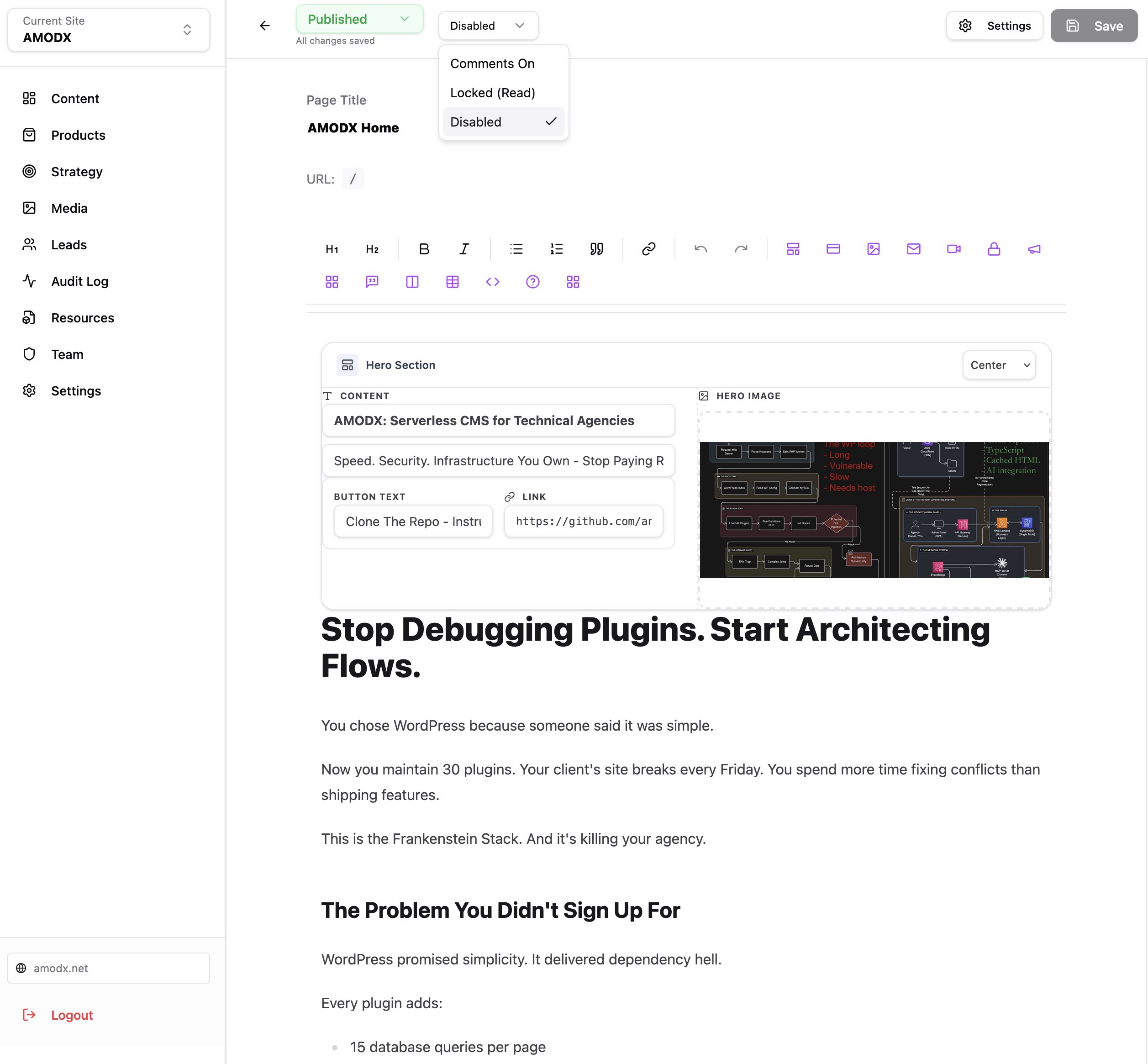
Each page uses a block-based editor (similar to Notion). Add blocks for hero sections, pricing tables, features, testimonials, contact forms, and more. The editor provides live preview of how blocks will render.
Products & E-Commerce
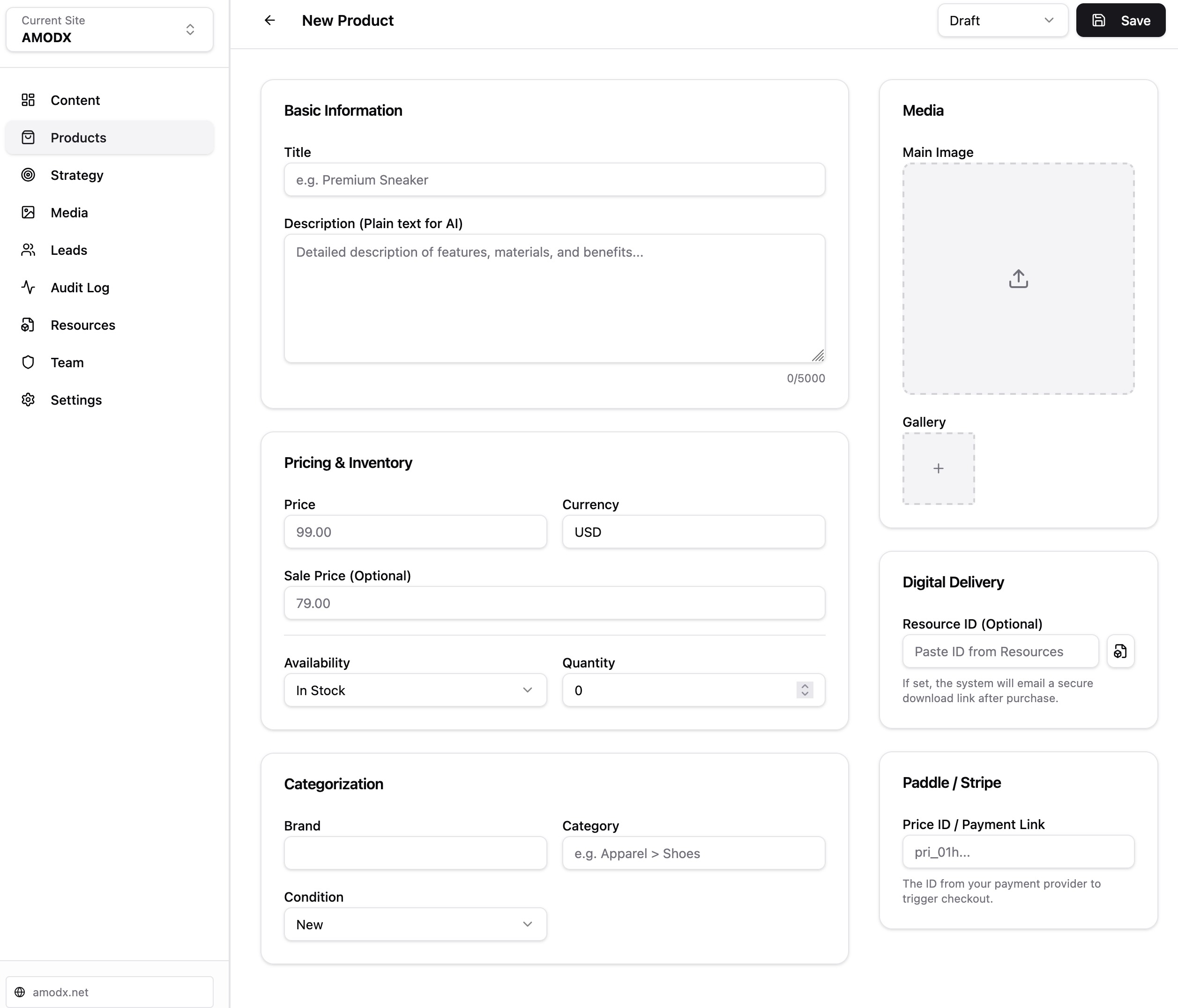
The Products section lets you create digital or physical products. Each product has pricing, inventory, images, and optional digital delivery (gated downloads via Resources). Integrated with Paddle for payments.
Strategy & Context (The Brain)
This is where AMODX differs from traditional CMSs. The Strategy section stores your business context as structured data. Create documents defining your positioning, target personas, pain points, and brand voice. AI agents reference this when generating content.
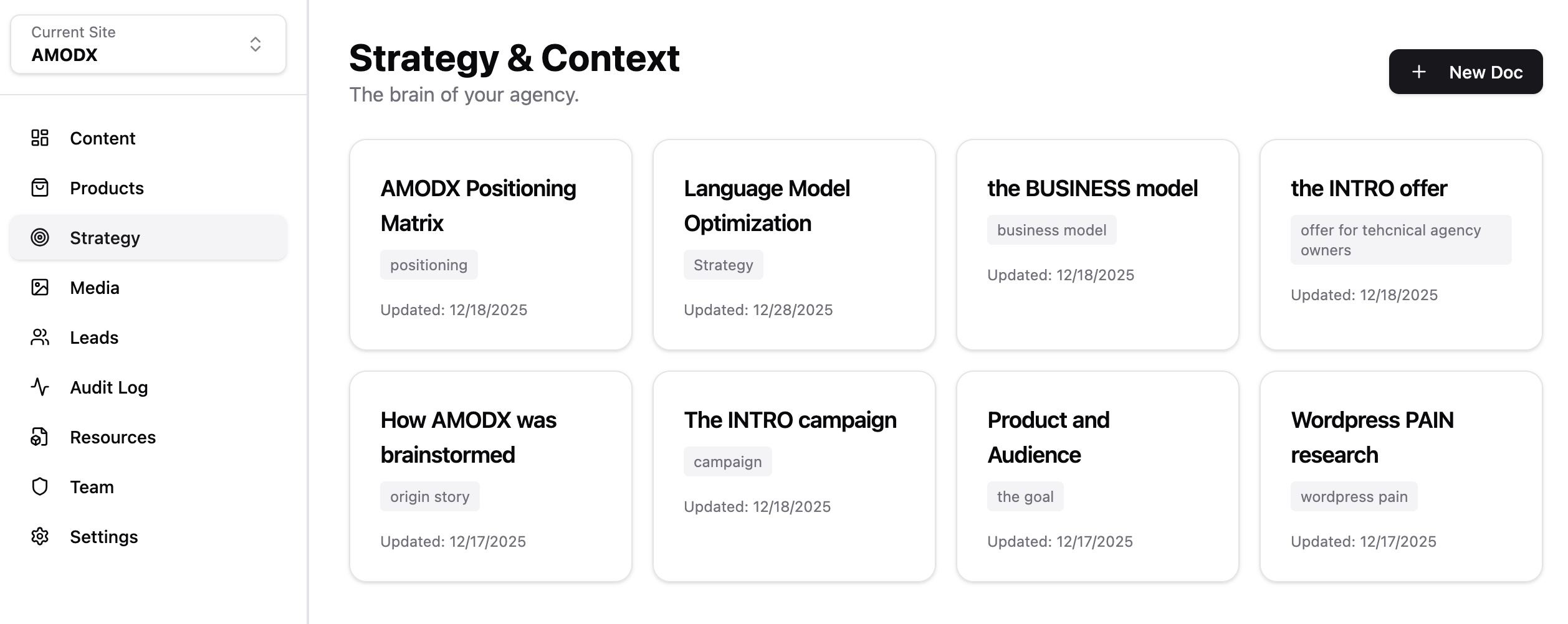
Example context documents: AMODX Positioning Matrix (how you differentiate), Language Model Optimization (SEO strategy), Product and Audience (who you serve), WordPress Pain Research (competitive intelligence).
Settings & Configuration
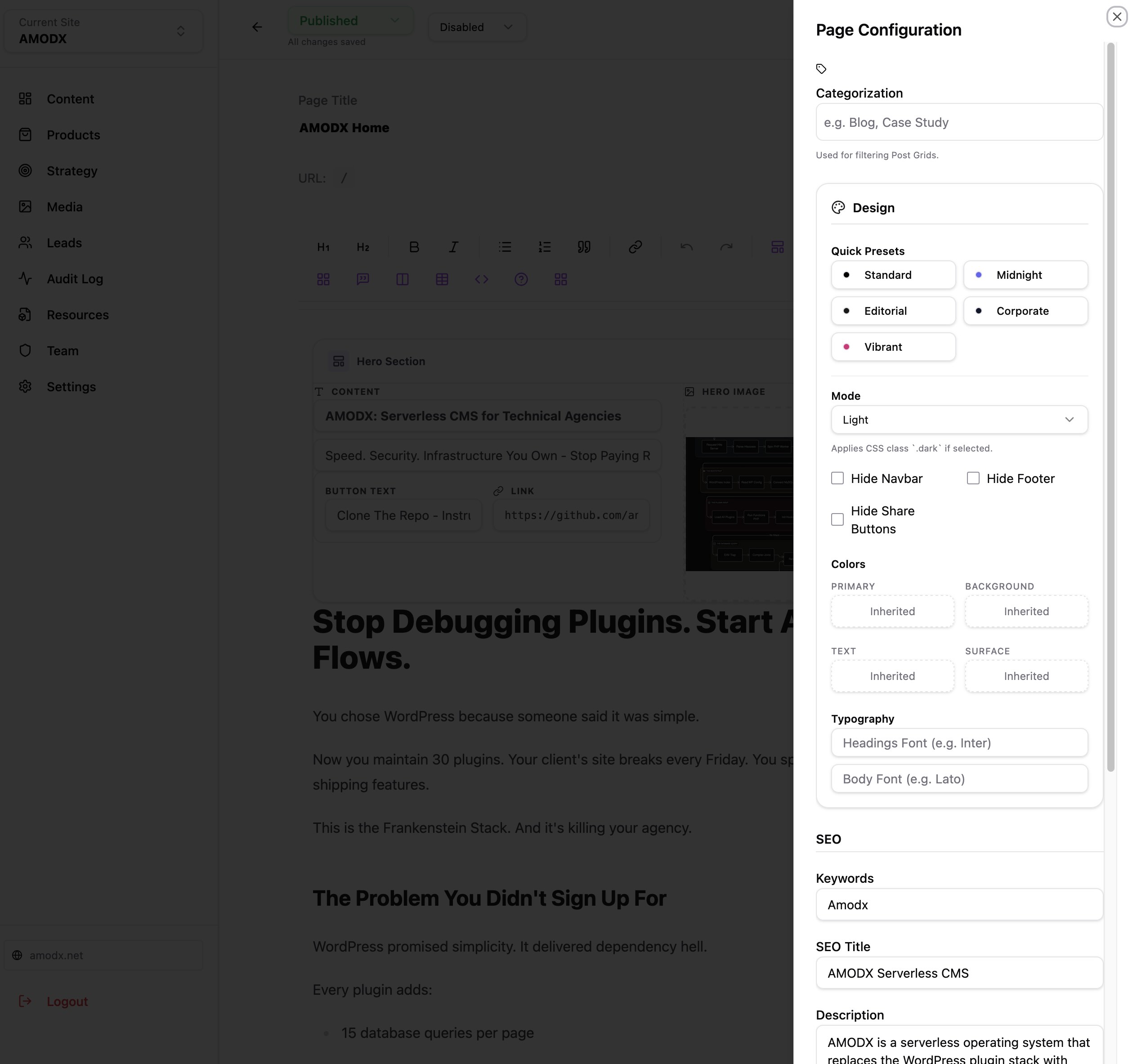
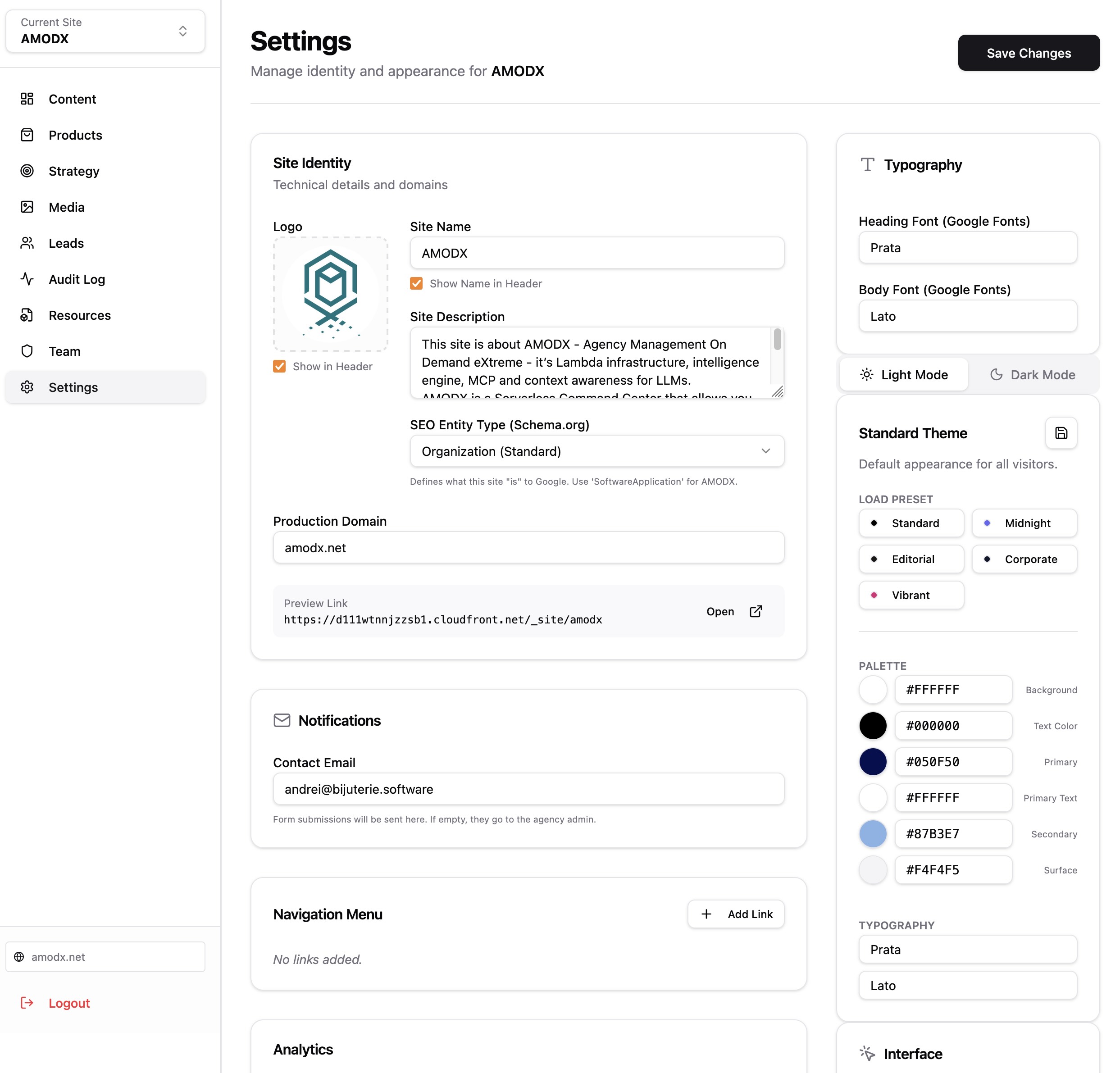
Settings control site identity, appearance, integrations, and technical configuration. This is where you configure domains, analytics, payments, and authentication.
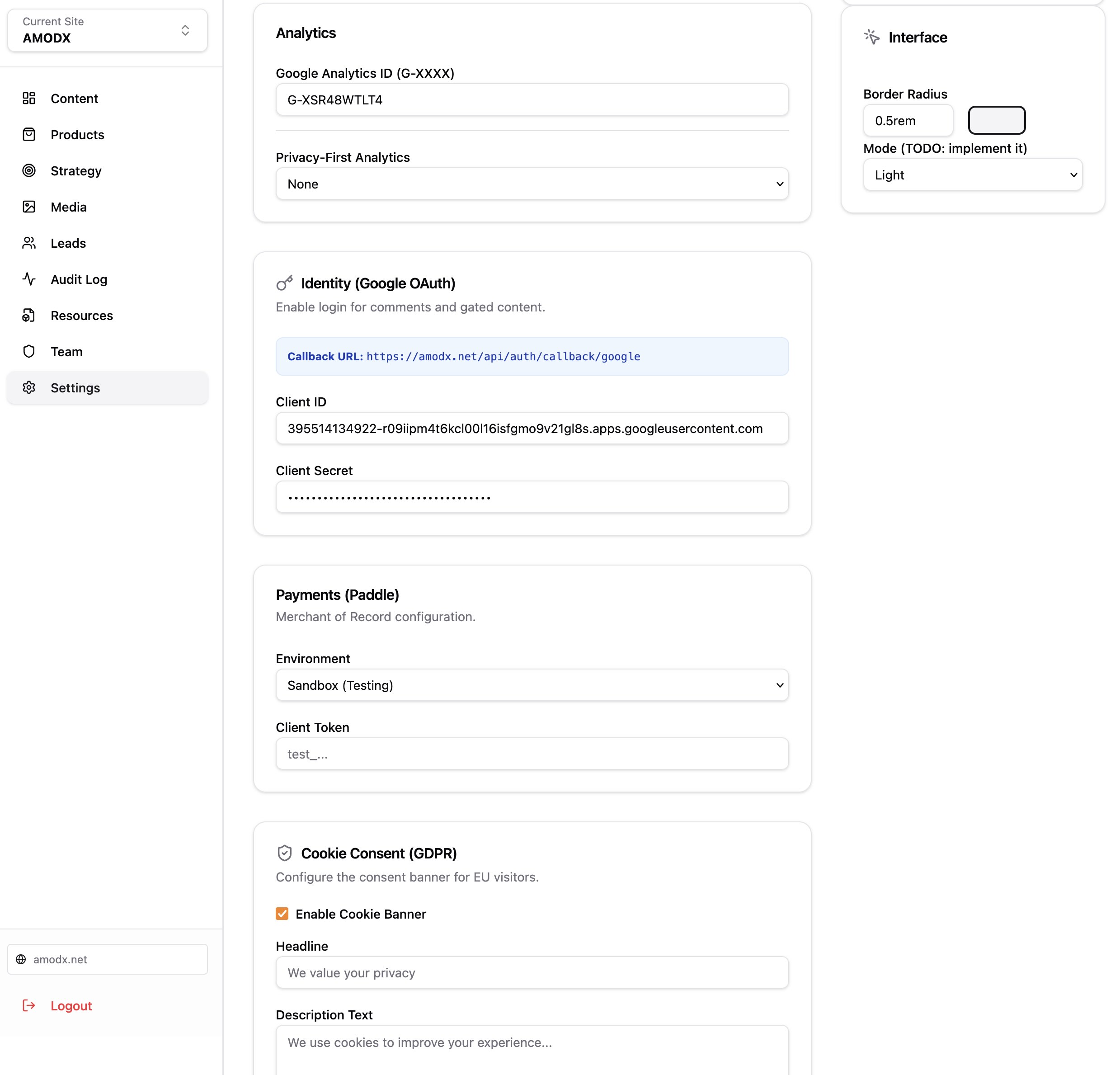
Scroll down and you find integrations:
Site Identity
Configure your site name, description, logo, and production domain. Set SEO entity type (Organization, SoftwareApplication, etc.) for Schema.org markup.
Typography & Theme
Choose from preset themes (Standard, Midnight, Editorial, Corporate, Vibrant) or customize colors, fonts, and spacing. Supports Google Fonts for headings and body text.
Integrations
Google Analytics: Add your tracking ID. Privacy-first analytics options available.
Google OAuth: Enable login for comments and gated content. Configure client ID and secret.
Payments (Paddle): Set up merchant of record configuration for product sales.
GDPR Compliance: Enable cookie consent banner with customizable text.
Managing AMODX Through Claude Desktop
AMODX includes a Model Context Protocol (MCP) server. This means you can manage your entire infrastructure directly through Claude Desktop—no need to open the Admin Panel.
What You Can Do Via MCP
Full Admin Control from Claude Desktop
Everything the Admin Panel does, Claude can do via conversation
Content Management
List pages, create new pages, update existing pages, read page content, modify blocks. Example: 'Create a new page at /about with a hero section and contact form.'
Context Documents
List strategy documents, create new context (positioning, personas, campaigns), read existing context. Example: 'Show me all strategy documents tagged with Q1.'
Products & E-Commerce
List products, create products with pricing and inventory, update product details. Example: 'Create a product called Founder's License priced at $299.'
Multi-Tenant Management
List all tenants (client sites), create new tenants, switch between sites. Example: 'Create a new site for dental-pros.com.'
Example Claude Desktop Workflows
Scenario: Update Pricing Page
You: 'Read the /for-builders page and update the Blueprint price from $29 to $39.'
Claude: [Calls read_page, identifies pricing block, calls update_page with new price]
'Done. Updated The Sovereign Blueprint price to $39. Page is still in draft—publish when ready.'
Scenario: Create New Context Document
You: 'Create a context document called Q2 Strategy with tags Strategy, Q2. Content: Focus on enterprise sales, target 10+ person agencies.'
Claude: [Calls create_context]
'Created Q2 Strategy context document. AI agents will now reference this when generating content.'
The MCP server makes AMODX fully conversational. You can delegate administrative tasks to Claude while you focus on strategy. 'Update all draft pages to use the Midnight theme' or 'Create a product for each service tier' become simple natural language commands.
Video Guides
Comprehensive video tutorials covering installation, first-time setup, and common workflows. These will be added as the platform matures.
Installation & Deployment (Coming Soon)
Step-by-step walkthrough of deploying AMODX to AWS. Covers AWS CLI setup, CDK deployment, domain configuration, and first login.
Creating Your First Page (Coming Soon)
Using the block editor to build a landing page. Adding hero sections, features, pricing tables, and contact forms. Publishing and viewing live.
Setting Up The Brain (Coming Soon)
Creating strategy documents, defining brand voice, and connecting Claude Desktop via MCP. Generating AI content that matches your positioning.
Common Admin Tasks
Adding a New Client Site (Multi-Tenant)
Via Admin Panel: Not yet implemented in UI. Use MCP or CLI.
Via Claude Desktop: 'Create a new tenant called Real Estate Pro with domain realestatepro.com.' Claude handles tenant creation and domain setup.
Importing Content from WordPress
Via Admin Panel: Content → Import WP button. Upload WordPress XML export. AMODX converts posts to pages with equivalent block structure.
Via Claude Desktop: 'Import this WordPress XML file and create pages.' Claude parses the file and creates pages programmatically.
Generating AI Content from Context
Via Admin Panel: Strategy → Select context document → Content → Generate (future feature).
Via Claude Desktop: 'Write a blog post about serverless security using our Q2 Strategy context and WordPress Pain Research.' Claude references both documents and generates tonally-matched content.
Updating SEO Metadata in Bulk
Via Admin Panel: Content → Click each page → Update SEO fields manually.
Via Claude Desktop: 'For all draft pages, generate SEO titles and descriptions based on page content.' Claude iterates through pages and updates metadata programmatically.
Things You Don't Have To Worry About Anymore
AMODX also generates robots.txt, llms.txt:
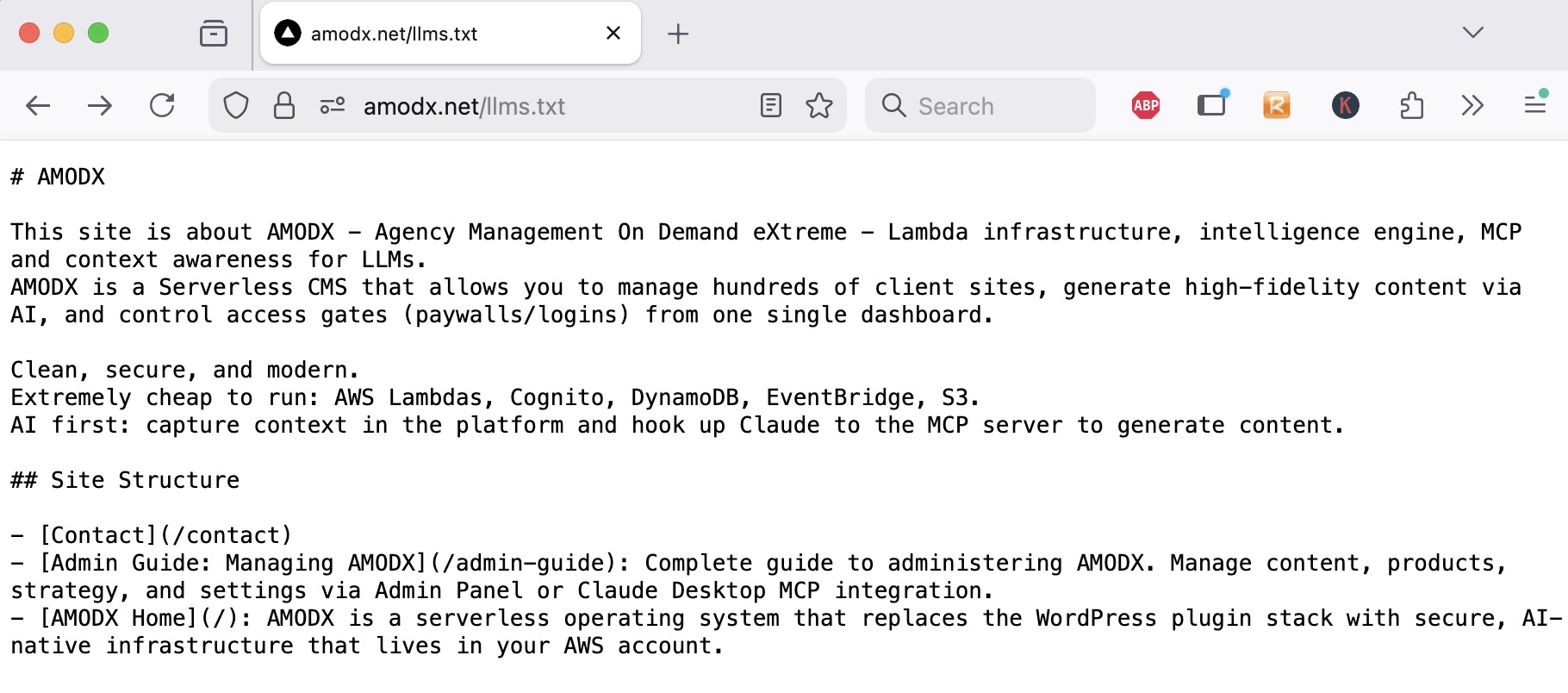
It also generates the sitemap.xml out of the box, as well as product schema, site schema and page schema (if it's different from the site schema)
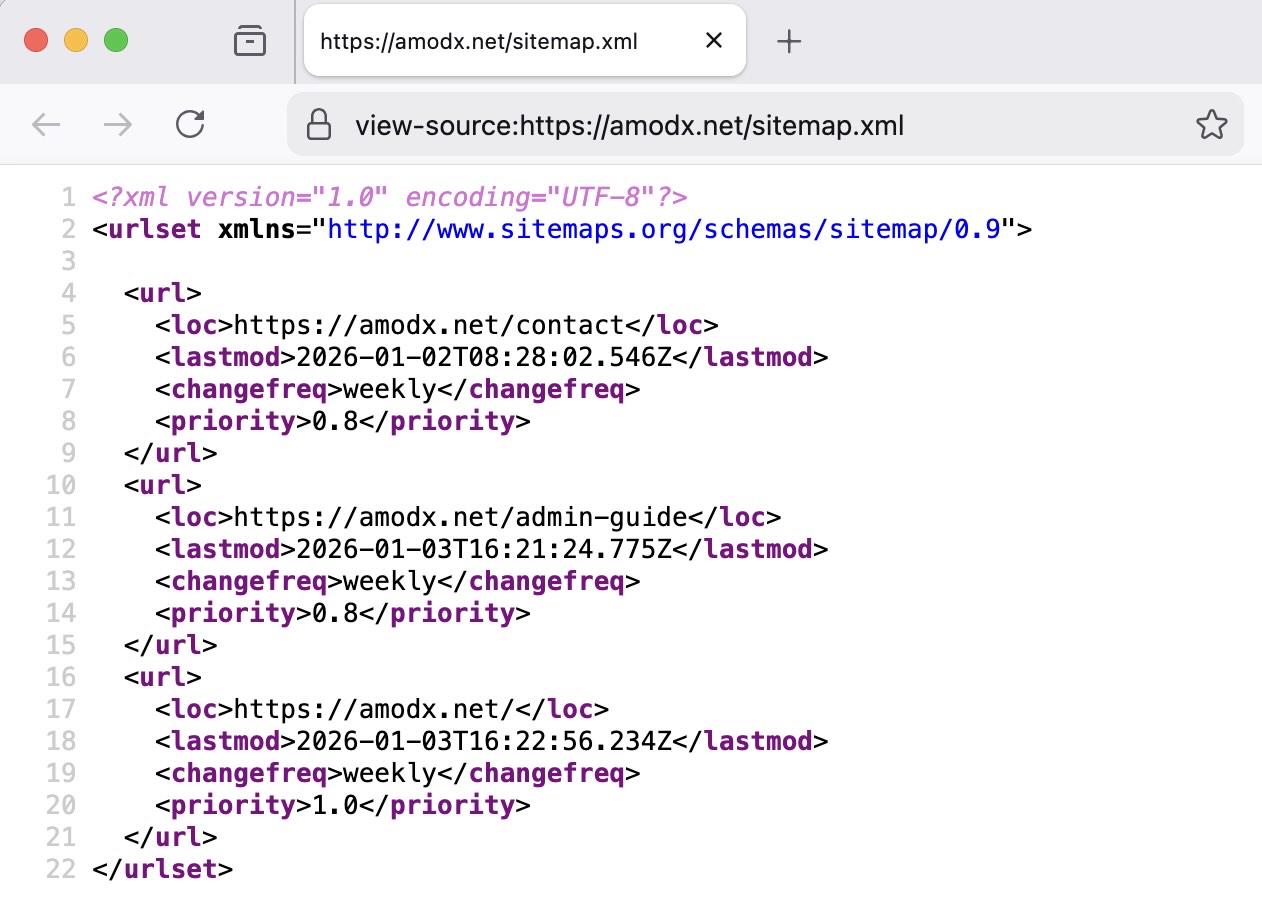
I wanted to enable modern websites from day 1.
Troubleshooting & Support
Pages not publishing?
Check that status is set to 'Published' not 'Draft'. Verify the slug does not conflict with existing pages. Run 'npx cdk deploy' to push changes to CloudFront.
MCP not connecting in Claude Desktop?
Verify claude_desktop_config.json includes the AMODX MCP server entry. Restart Claude Desktop after config changes. Check that AWS credentials are valid.
Images not loading?
Ensure images are uploaded to Media section before referencing in blocks. Check CloudFront distribution is active (can take 10-15 minutes after deploy).
Context not being used by AI?
Tag context documents with relevant keywords. Reference tags explicitly in prompts: 'Use Strategy and Q2 tags.' Verify documents are saved (check updated timestamp).
Getting Help
For Founder's Circle members: Ask in private Slack. For open-source users: Check GitHub Issues or Discussions. For custom agency platform clients: Contact your dedicated support channel.